
Running Local LLMs on iOS with MLC-LLM
Table of Contents
Sharing how to run local LLMs on iOS devices using MLC-LLM.
👉 한국어 버전
MLC-LLM
MLC-LLM is a solution that helps universally deploy and run machine learning models with high performance on any hardware device (mobile, browser, desktop, etc.). Especially in the iOS environment, it supports hardware acceleration using the Metal API, allowing LLMs to run efficiently even on mobile devices with relatively low specifications.
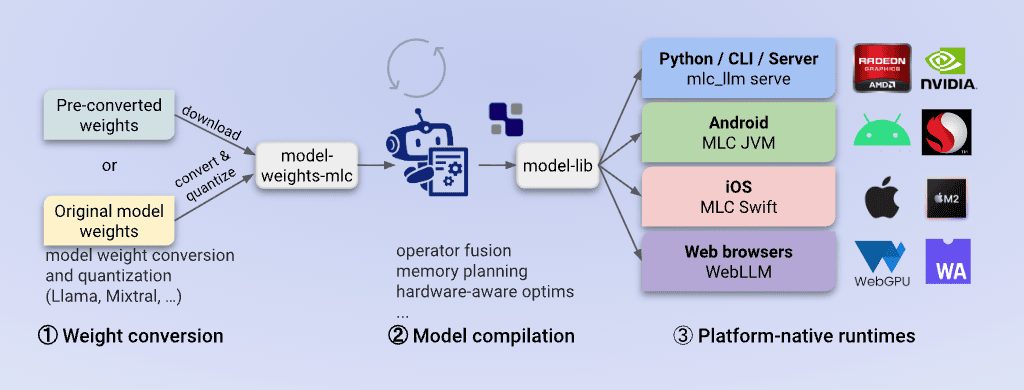 MLC-LLM (Source)
In this post, I will share how to run local LLMs on iOS devices using MLC-LLM.
Initial Setup
First, clone the MLC-LLM project. This project includes TVM Unity, the core compilation engine, as a submodule, so you must use the --recursive option or update submodules after cloning.
1 | git clone https://github.com/mlc-ai/mlc-llm.git |
Next, set up a Python virtual environment for LLM compilation and model conversion. MLC-LLM requires a process to convert models into optimized code for the device, and using a virtual environment is recommended to avoid conflicts with the system environment. In particular, the mlc-llm-nightly package is updated frequently, so installing the pre-built nightly wheel engine is most efficient.
1 | python3 -m venv .venv |
Finally, install tools for managing large weight files and accelerating performance on iOS. Since LLM models include weights reaching several GBs, git-lfs is essential, and the MetalToolchain component is required to run models quickly through the Metal GPU on iOS devices.
1 | brew install git-lfs |
Build and Run
Now, package the libraries to be included in the iOS app using the installed tools. This step bundles the previously installed MLC-LLM engine into a static library format that the iOS project can recognize.
First, you need to set the MLC_LLM_SOURCE_DIR environment variable so the build script knows the location of the source code. While you can apply it temporarily, it is recommended to add it to ~/.zshrc or ~/.bash_profile for future convenience.
1 | # Add to ~/.zshrc, etc. (Modify the path to your own mlc-llm clone path) |
Once the environment variable is set, move to the ios/MLCChat folder and execute the packaging command.
1 | cd ios/MLCChat |
After packaging is complete, the Xcode project will be ready in the ios/MLCChat folder. Enter the following command in the terminal to launch Xcode immediately.
1 | xed . |
When the Xcode project opens, some essential settings are required to run it on a real device or simulator.
Destination Setting: You can run it on a real iPhone, but you can also choose the
My Mac (Designed for iPad)option to test using the Mac’s Silicon chip acceleration. Setting My Mac (Designed for iPad) in Xcode
Signing & Capabilities: iOS apps must be signed for security. Choose your Apple ID team and modify the
Bundle Identifierto a unique value to avoid file conflicts.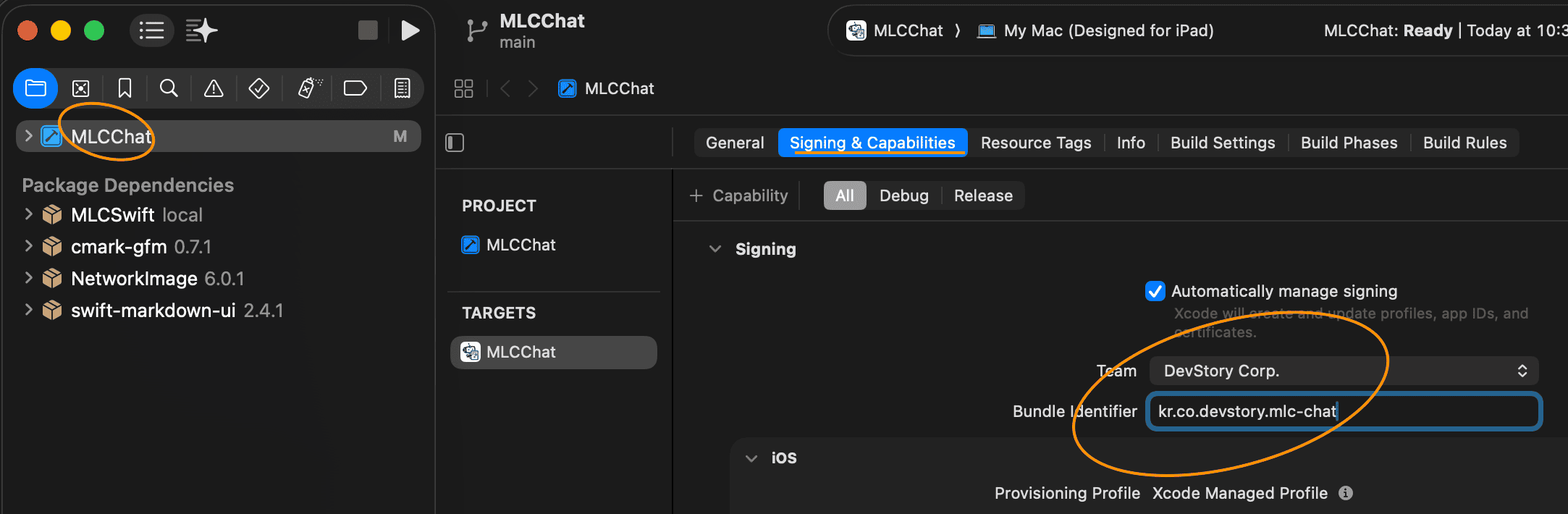 Xcode Signing and Bundle Identifier Setup
After all settings are complete, press the Run (Cmd + R) button to launch the app. Upon initial launch, the model list will be empty, so you can download basically supported models through the Model Manager within the app.
Default Models
The model configurations basically supported by the iOS MLCChat project are as follows.
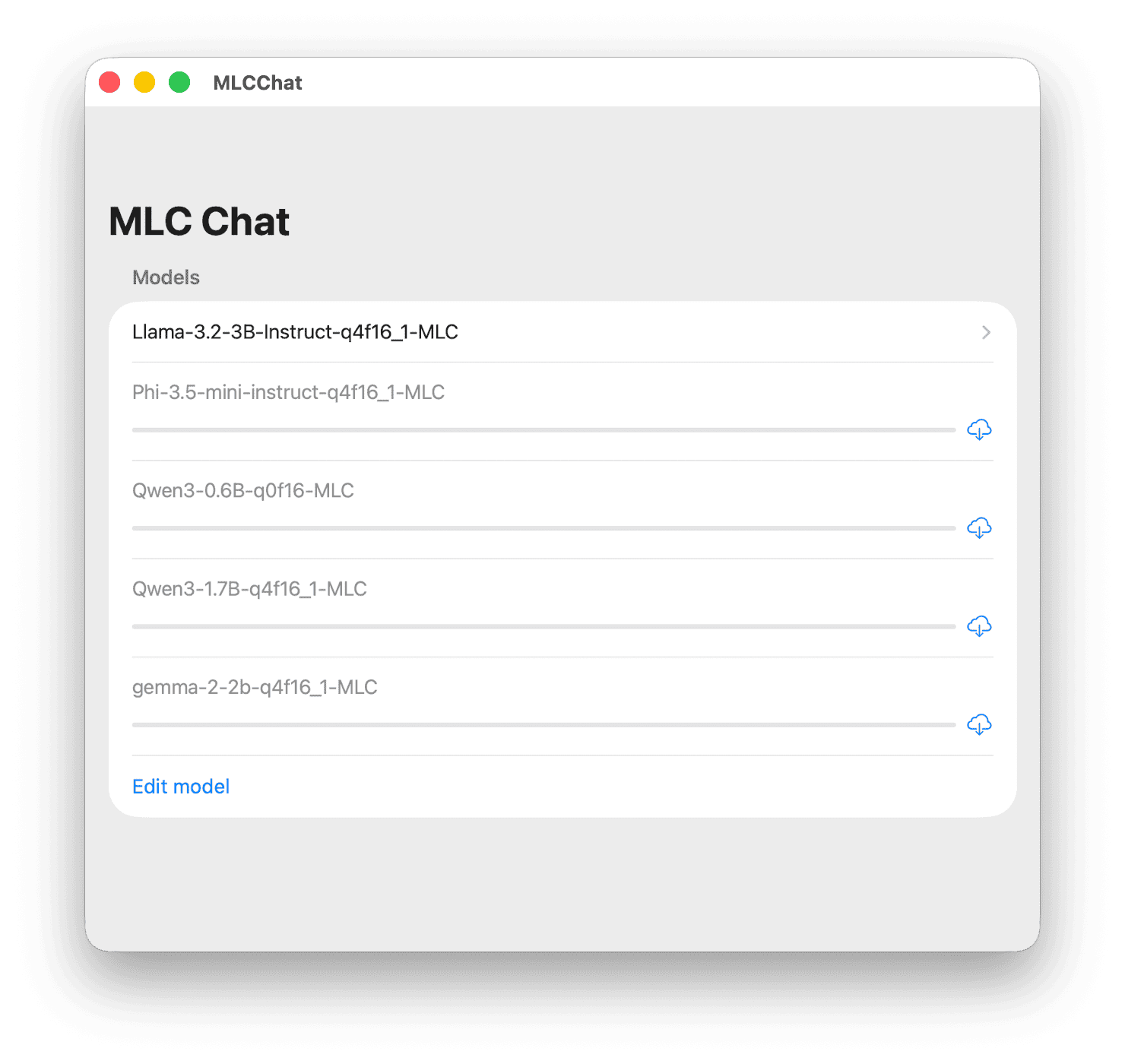 MLCChat Default Model List
| Model | Characteristics |
|---|---|
| Llama-3.2-3B | Developed by Meta, latest high-performance small model, 4-bit quantization, 2K Context |
| Gemma-2-2B | Developed by Google, efficient architecture, 4-bit quantization |
| Phi-3.5-mini | Developed by Microsoft, strong reasoning performance, 4-bit quantization |
| Qwen3-0.6B | Developed by Alibaba, ultra-lightweight model, FP16 precision |
| Qwen3-1.7B | Developed by Alibaba, balanced performance, 4-bit quantization, 2K Context |
The following is a demonstration video of Google’s Gemma2 2B model running directly on iOS.
Gemma2 2B Model Demo
The Gemma2 2B model released by Google has relatively light 2 billion parameters, but it shows very outstanding performance compared to its class thanks to its optimized architecture.
In particular, the q4f16_1 quantization method used in this demo compresses model weights to 4 bits (q4) to reduce capacity while maintaining 16-bit (f16) operation precision to minimize performance degradation. Thanks to these optimizations, smooth operation is possible even in the limited RAM environment of mobile devices, and it can be confirmed that it operates stably while occupying about 2.4GB of memory during actual execution.
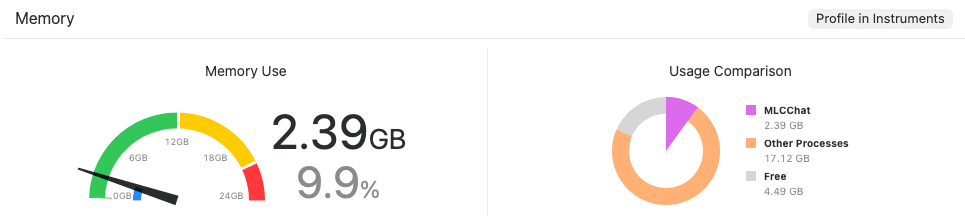 Gemma2 2B q4f16 model occupying about 2.4GB of memory
As you can see in the video, it shows a fast response speed close to real-time with almost no latency felt despite being in an On-Device environment.
Building Custom Models for iOS
Here we introduce how to optimize and upload models other than the default ones to iOS.
This process assumes that the virtual environment (.venv) is activated under theios/MLCChatfolder.
Downloading Models
Install huggingface_hub and log in to download models.
1 | pip3 install huggingface_hub --upgrade |
An access token input window appears during login.
1 | ❯ python3 -c "from huggingface_hub import login; login()" |
Issuing a Hugging Face READ Token
- After logging into Hugging Face, select the Access Tokens menu on the settings page.
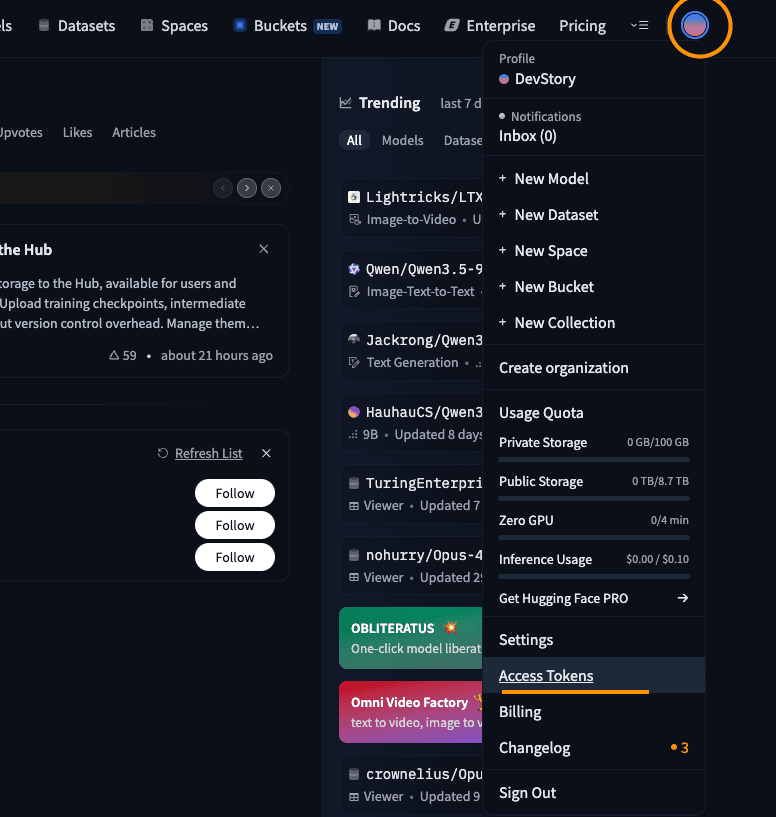 Navigating to Hugging Face Access Tokens setup
 - Click the Create new token button.
 Clicking Create new token button
 - Select Read permission, enter a name for the token, and issue it.
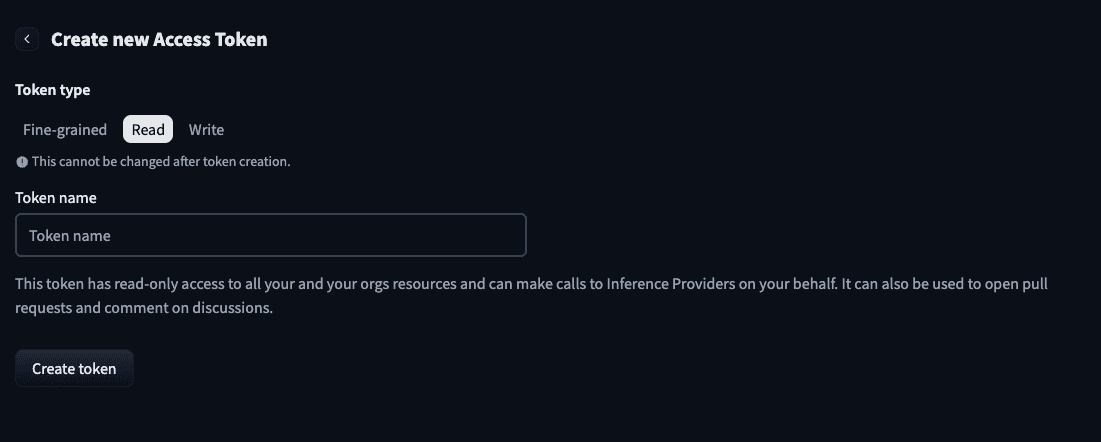 Selecting Read permission and entering name
 - Copy the generated token and enter it in the terminal to complete login.
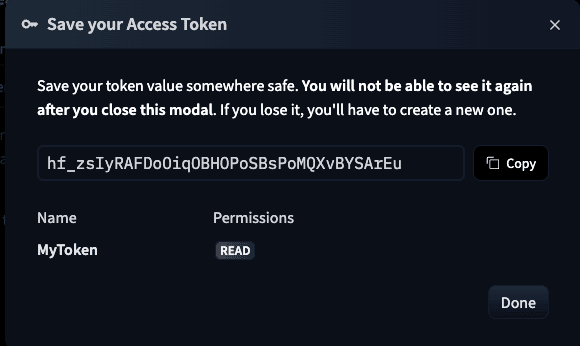 Copying issued token
In this post, we will download the Gemma-3-1b-it model, quantize it, and run it on iOS. Please run the following command to download the model.
1 | python3 -c "from huggingface_hub import snapshot_download; snapshot_download(repo_id='google/gemma-3-1b-it', local_dir='./dist/models/gemma-3-1b-it', local_dir_use_symlinks=False)" |
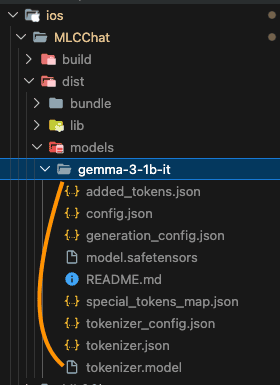 Hugging Face model download completed
If you do not agree to the model license when running the command, a 403 error may occur as shown below.
1 | huggingface_hub.errors.GatedRepoError: 403 Client Error. |
If you access gemma-3-1b-it, it says that you need to accept permissions as shown below.
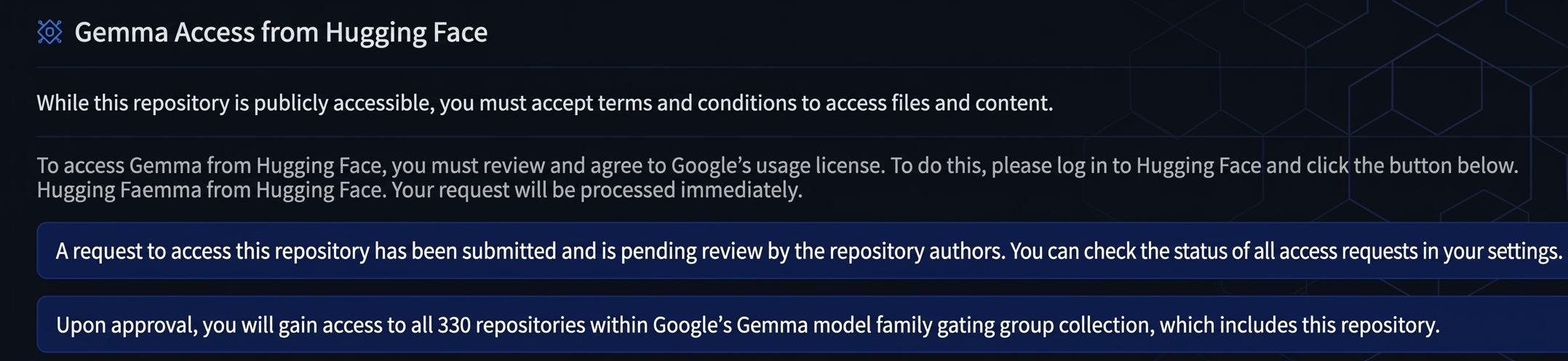 Hugging Face Gated Repo permission required message
After accessing Kaggle’s Gemma License Consent Page, select Hugging Face and proceed with consent.
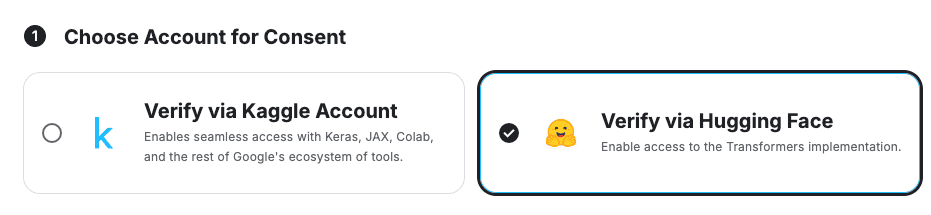 Proceeding with license consent
In Hugging Face Gated Repos, you can check that the Request Status is displayed as Accepted. Afterward, run the above command again to proceed with the download.
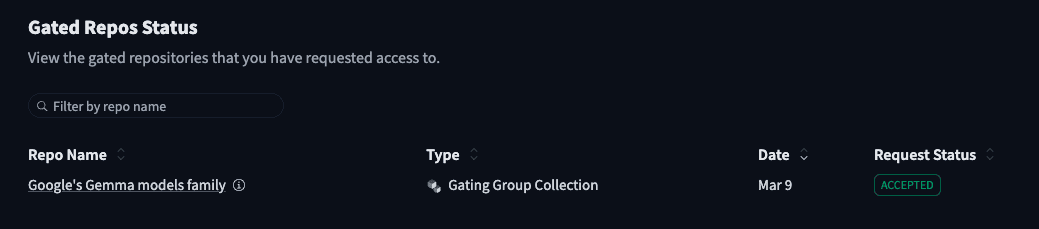 Checking Accepted status on Hugging Face
Model Weight Conversion and Quantization
The original safetensors files downloaded from Hugging Face are in FP16 or BF16 formats optimized for large server-class GPUs. To run them on the iPhone’s limited RAM, a Quantization process is essential. In this step, MLC-LLM divides weights into small pieces that the device can understand, compressing the capacity by about 1/4 while minimizing performance degradation.
1 | python3 -m mlc_llm convert_weight ./dist/models/gemma-3-1b-it \ |
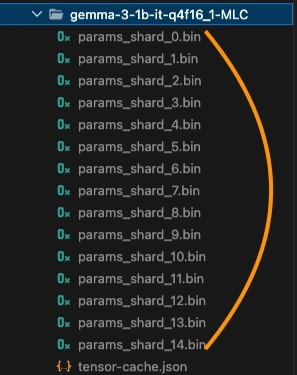 Model weight conversion and quantization process
Creating Model Configuration
Conversation is not possible with model weights alone. This is because Conversation Templates, which are agreements on ‘how to ask and answer’, are different for each LLM. In this step, necessary configuration files such as mlc-chat-config.json are created within the converted weights folder. In particular, it is important to specify the --conv-template gemma3_instruction option to follow the instruction format of the Gemma 3 model accurately.
1 | python3 -m mlc_llm gen_config ./dist/models/gemma-3-1b-it \ |
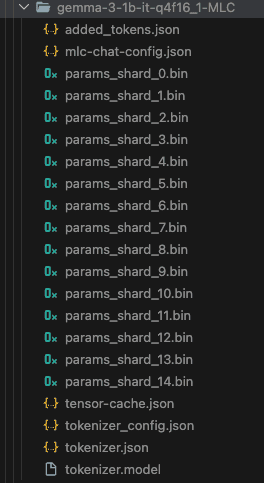 Model configuration creation completed
Compilation
The final step is to create the Execution Engine (Metal Kernel) that will actually drive the optimized weights. This process converts the model’s operation structure into a library format that the iPhone’s GPU (Metal) can process most efficiently. Through the device iphone option, final build results are created that can maximize the hardware acceleration performance of the target device.
1 | python3 -m mlc_llm compile ./dist/models/gemma-3-1b-it-q4f16_1-MLC \ |
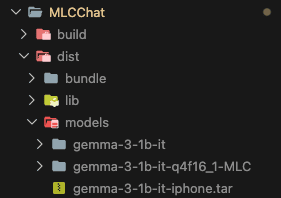 Model compilation for iPhone completed
Packaging and Final Execution
Finally, you need to add the newly built model information to mlc-package-config.json.
1 | { |
Then, run the packaging command again.
1 | python3 -m mlc_llm package |
When you run the app in Xcode after packaging, you can confirm that the gemma-3-1b-it-q4f16_1 model has been added.
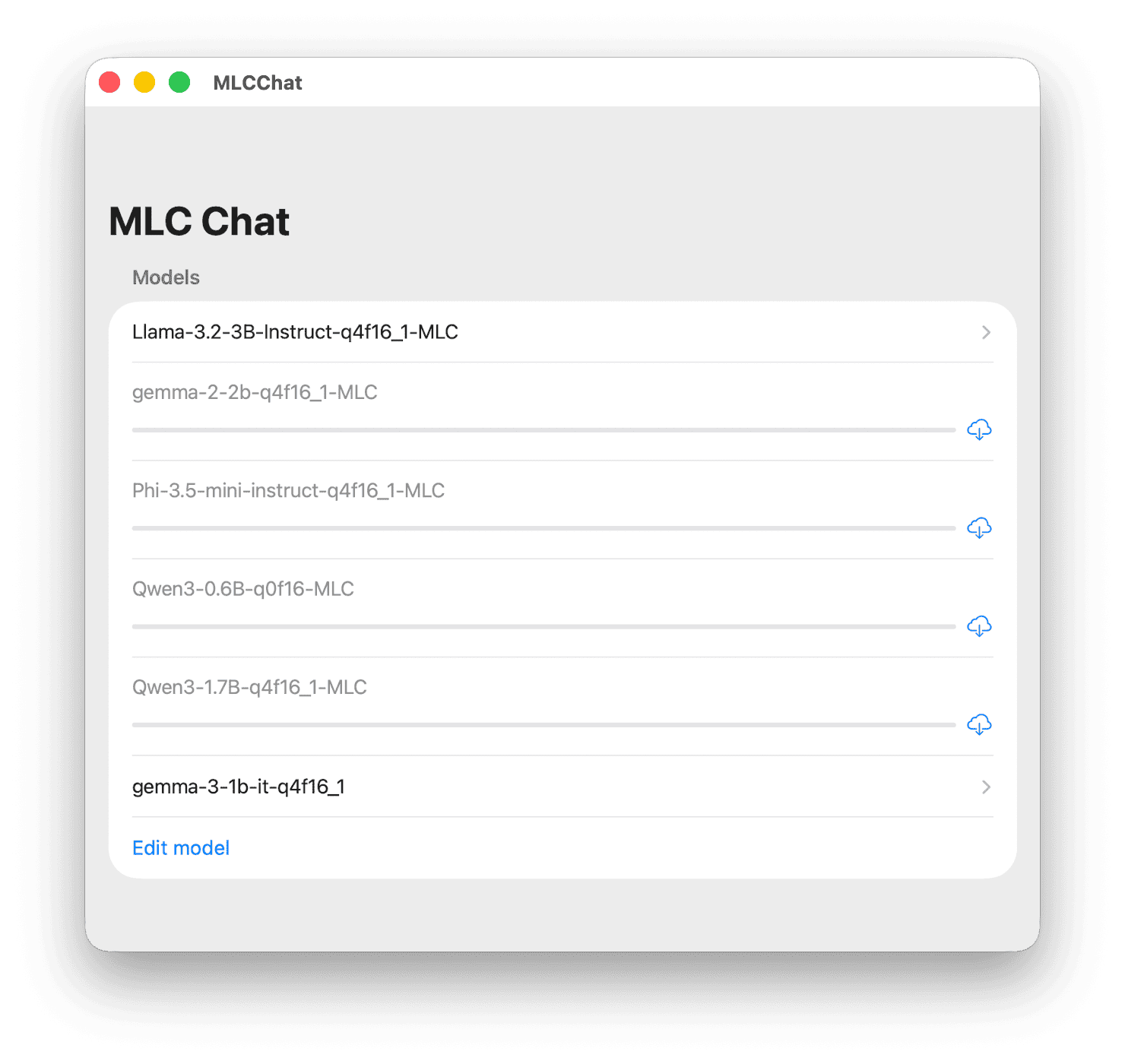 Running Gemma 3 1B Model
Gemma 3 1B Model Execution Demo
Google’s Gemma 3 1B is a model with 1 billion parameters that is even lighter and more efficient than the 2B model we saw earlier. With the latest architecture applied, it shows surprising performance in daily conversations or simple tasks despite its small size.
When applying the same q4f16_1 quantization method, the memory occupancy is significantly reduced to about 1.14GB. This means that the model can run much more stably without being forced to close even on older devices or in environments where various apps are used simultaneously.
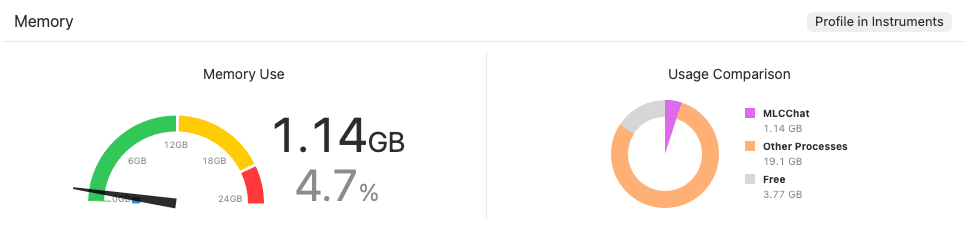 Gemma 3 1B q4f16 model occupying about 1.14GB of memory
Conclusion
Using MLC-LLM, you can directly port high-performance LLMs to iOS devices to gain both privacy and offline execution benefits.
However, one disappointing point is that the small models (SLMs) demonstrated above showed some difficulty in generating structured responses like JSON format in an On-Device environment. To utilize them for functions requiring complex system prompts or data extraction tasks, supplementary work such as prompt engineering or additional fine-tuning seems to be necessary.
In the future, if model-dedicated pipeline connections and project optimization tasks are carried out in parallel, it is expected that more practical On-Device AI services can be built.