
Part 2. Guita - Guitar Tuner for the Visually Impaired
Table of Contents
Introducing the guitar tuner app for the visually impaired.
👉 한국어 버전
Part 1. Guita - Guitar Learning App for the Visually Impaired
✔︎ Part 2. Guita - Guitar Tuner for the Visually Impaired
Guita - Guitar Tuner by Ear
Guitar tuner app for the visually impaired
👉 Play Store
👉 App Store
This project began when I visited Mr. Ha (who has total blindness) at his home for the last time during Part 1 and discovered that his guitar was completely out of tune. Most guitar tuner apps on the market rely heavily on visual feedback, making them difficult for visually impaired users to use.
To solve this problem, I started developing a guitar tuner app for the visually impaired, and completed the project as a solo developer using Flutter over the course of one month.
Demonstration
The app provides guitar tuning and chord fingering learning features, supporting both Android and iOS. The following video is an app demonstration using iOS VoiceOver.
Design
While the previous project targeted only totally blind users and did not prioritize visual elements, this time I considered both totally blind and low-vision users to make the app accessible to more people.
Screen Reader Friendly Design
Screen readers are called TalkBack on Android and VoiceOver on iOS.
Since screen readers understand the screen’s state based on the order of focus and voice descriptions, it takes a long time to grasp the overall status of the screen.
To minimize cognitive load and provide a predictable and consistent navigation experience for screen reader users, I implemented the UI based on the following rules:
Provide Concise Screen Reader Guidance
- Screen reader descriptions should convey only the core information concisely.
- Long descriptions can cause user fatigue and degrade overall usability.
No Arbitrary Focus Changes
- Avoid moving the focus arbitrarily.
- Unexpected focus changes disrupt the user’s navigation flow, so the UI is designed to move naturally according to consistent rules.
Minimize Dynamic UI Changes
- Avoid structures where screen elements change dynamically.
- Minimize the use of widgets that can cause contextual confusion for screen reader users.
e.g. BottomNavigationBar, ExpansionTile
Consistent Navigation Element Placement
- Adhere to WCAG (Web Content Accessibility Guideline) – Consistent Navigation recommendations.
- Ensure navigation elements are always placed in the same position and order for predictability.
e.g. Back button on the top left, Guide button on the top right.
Use Screen Reader Instead of Custom TTS (Text To Speech)
- Playing multiple voices simultaneously makes it hard for users to perceive information clearly.
- All voice guidance is consistently provided through the screen reader instead of a separate TTS.
Tuner Design
Totally blind users can perceive the guitar’s tuning status through two types of auditory feedback: screen reader voice guidance and continuously playing beeps.
Voice feedback via screen reader informs the current tuning status at regular intervals. For example, if a string is loose, it says “String 6 is 20Hz low,” allowing the user to decide whether to tighten or loosen the string.
The continuous beep assists with fine-tuning. Much like a car’s reverse parking sensor, the interval between beeps shortens as the string’s frequency approaches the target frequency. Users simply need to tune in the direction where the beep interval decreases.
Additionally, I designed the pitch of the beep to differ when the frequency is lower vs. higher than the target, helping users identify where the target frequency boundary lies.
Chord Learning Design
We prepared 600 chord fingerings, consisting of 50 tonalities (Major, Minor, …, add9, etc.) for each of the 12 musical scales (C, C#, D, …, B). Users can also see various fingerings for a single chord, and I implemented the PageView to be controllable via screen readers.
For low-vision users, guitar fingering diagrams were implemented using Canvas. For totally blind users, the app is designed to explain fingerings in ascending order, starting from the lowest fret and lowest string number.
Information was compressed to deliver only the essentials as concisely as possible, and guitar sounds were directly played using Sound Fonts.
Flutter
This project was developed with Flutter to support both Android and iOS.
Accessibility Implementation
You can find accessibility-related content in the Flutter Accessibility Official Documentation. Some of the frequently used accessibility widgets are:
| Widget | Description |
|---|---|
| Semantics | Adds accessibility information (label, hint, value, etc.) to custom widgets. |
| MergeSemantics | Merges multiple visual elements into a single accessibility node. |
| ExcludeSemantics | Excludes decorative elements from the accessibility tree. |
While screen readers will read basic text even without a Semantics widget, using it allows you to provide additional information. Screen readers read attributes in the order of Label → Hint → Child Semantics (if present) → Value. You can also use OrdinalSortKey to change the focus order.
1 | Semantics( |
For a PageView, if you want the screen reader to re-read changed elements when the page turns, you can implement it as follows and set the liveRegion property of each page to true. onIncrease and onDecrease are functions that implement PageView navigation via the screen reader. Users can swipe up or down after focusing to change pages.
1 | Semantics( |
You can also check if a screen reader is active to perform conditional logic:
1 | extension SemanticsExtension on BuildContext { |
Setting the showSemanticsDebugger property to true in MaterialApp displays an overlay with accessibility information. This is useful for debugging as it shows the Label, Hint, Value, etc., that the screen reader will read.
1 | MaterialApp( |
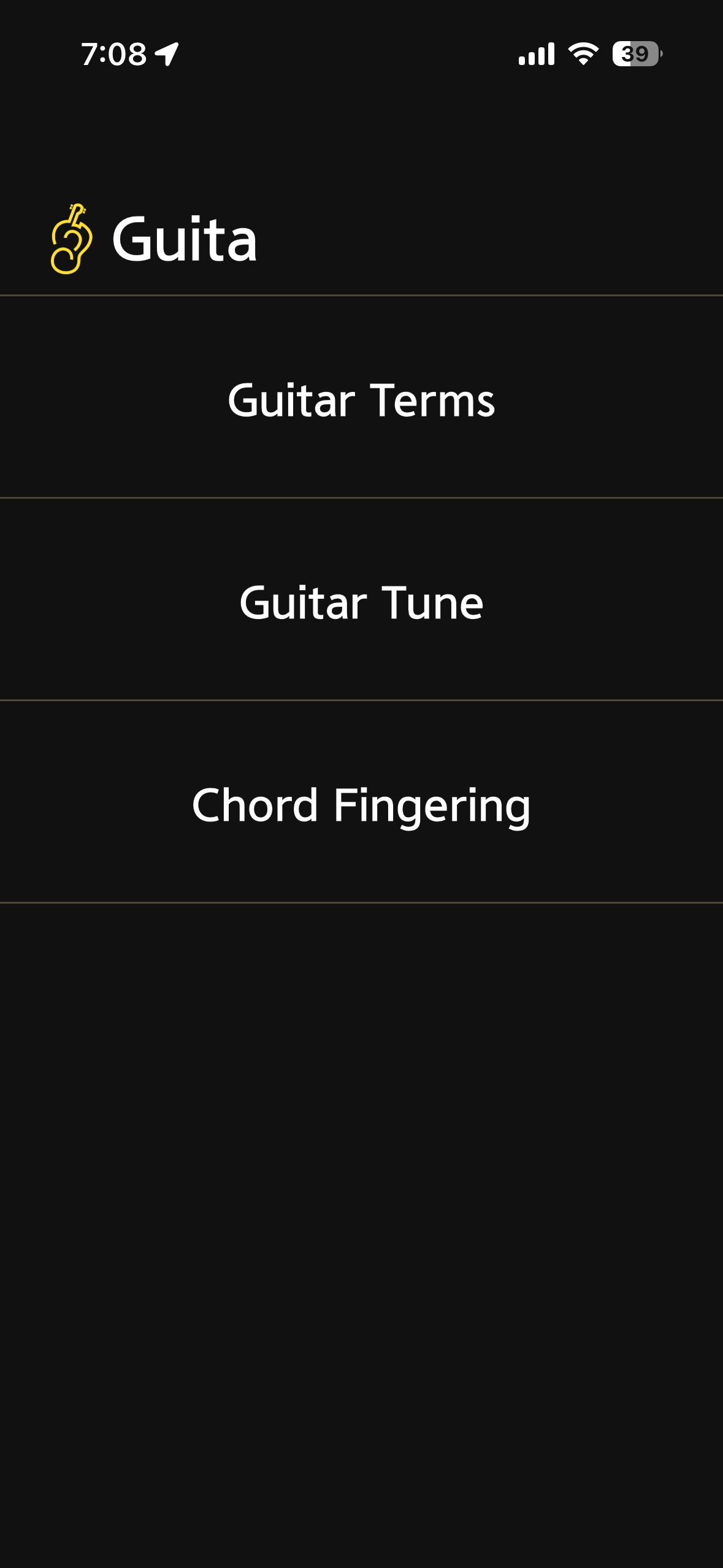 Home Screen (Debugger Off)
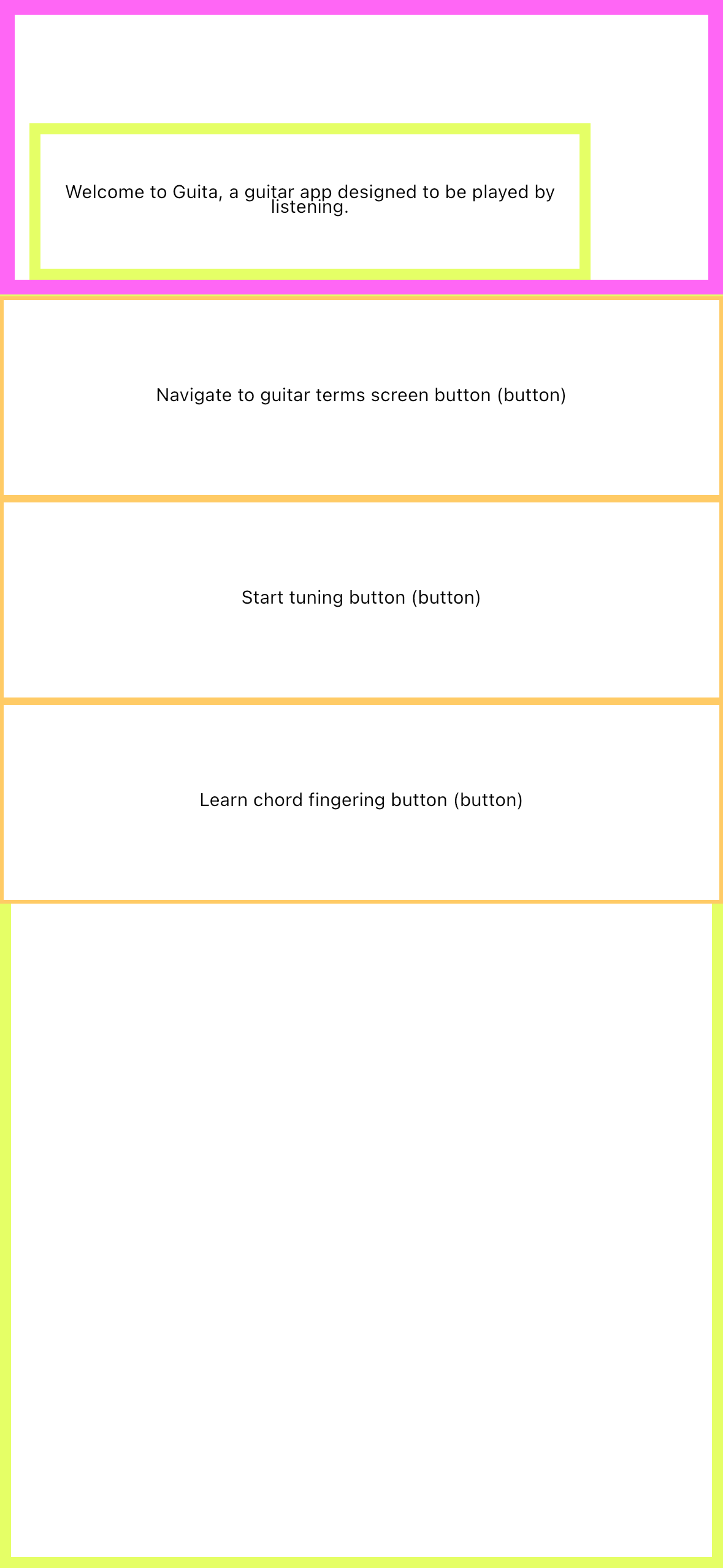 Home Screen (Debugger On)
Tuner Implementation
To build a tuner that informs the tuning status via sound, I had to ensure it recognized only the guitar sound, while ignoring the beeps or the screen reader’s voice. On iOS, this was easily achieved at the OS level by configuring the Audio Session to cancel device-generated sounds.
Android was more challenging due to a chain of issues. Setting the recorder’s Audio Source to VOICE_COMMUNICATION effectively cancelled device sounds, but it caused issues recognizing the frequency bands of the 1st and 2nd guitar strings.
To resolve this, I changed the Audio Source to MIC and moved the beeps to a higher frequency band, then implemented direct filtering during the FFT processing stage. While the issue of TalkBack audio bleeding into the microphone remained with this method, I mitigated it by increasing the notification interval.
Additionally, setting the Audio Source to MIC caused the liveRegion feature to malfunction on Android. I reported this to the Flutter Issue tracker and implemented a workaround using sendAnnouncement instead of liveRegion for Android devices. However, since the sendAnnouncement API is scheduled for deprecation in Android API level 36, a replacement implementation will be needed for future Android updates.
Finishing
I usually design apps optimized for visual interfaces, but through this project, I realized that the difference between the two approaches is greater than expected. The experience of contemplating what kind of interface to provide for a tuner to screen reader users was both meaningful and fun.
Guita - Guitar Tuner for the Visually Impaired
👉 Play Store
👉 App Store
I hope Guita becomes a helpful tool for the visually impaired. 🎸